


Design Space: DIY with Cricut
3.926.27K Reviews
App Specs
- Version
- 6.72.0
- Updated On
- License
- Free
- Downloads
- 5,000,000+
- Developer
- Cricut
- Categories
- Lifestyle
- Platform
- Android, iOS
Screenshots

 Analysis by AppCompare
When I’m deciding whether a craft-design app is worth keeping on my phone, I ask one practical question: will it help me get from an idea to a finished object without making every step harder? Design Space: DIY with Cricut is built around that job. It is a free lifestyle app from Cricut, and it makes the most sense for people who already use a Cricut machine or are considering one. It is less compelling as a general-purpose drawing app if you don’t plan to make physical projects.
My main advice is to think about the whole workflow, not just the screen. The app can help shape a project, but the material, machine, and cutting setup still matter. Before starting something time-sensitive, I’d check that the design is suitable for the material and that I understand the steps required to make it. That small bit of planning can prevent the familiar crafting disappointment of a polished design that doesn’t translate neatly to the finished piece.
Choose it for making, not just sketching
This is a focused tool for turning designs into craft projects, rather than a blank canvas aimed at every kind of digital art. That distinction matters when comparing it with drawing apps, image editors, or template tools. Those alternatives may feel more natural for freehand illustration or detailed photo work; Design Space is the more relevant choice when the end goal is a project prepared for a Cricut machine.
I’d also separate designing from browsing. A library of ready-made projects can help when I need a starting point, but choosing a template is only one part of a successful result. The useful question is whether I can adapt it to the occasion, material, and size I have in mind. For a quick card or label, a simple starting design may save time. For a very personal gift, making room to adjust the text and layout is what gives the result its character.
A realistic project-day workflow
Imagine I’m making a few matching labels for storage jars before a weekend tidy-up. I can begin with text, arrange the words, and consider how the design will look at the size I need. Before sending it to the machine, I’d pause to check spacing and make sure the lettering remains readable when reduced. That is a more useful habit than rushing straight from a nice-looking screen preview to a cut.
For a batch of similar items, I’d treat the first one as a test rather than assuming every copy will be perfect. Make one, inspect how it looks in place, then adjust the design if the lettering feels too small or the layout looks crowded. This is especially helpful when a project will be repeated: a small change made early is easier than discovering a flaw after preparing several pieces.
Design Space is most appealing to people who enjoy hands-on projects and are willing to learn a little as they go. It can also suit a parent preparing decorations, a hobbyist personalizing gifts, or someone who wants to make coordinated items for home use. If you only want to crop photos, draw with a stylus, or create graphics for social posts, a dedicated image or illustration app is likely a better fit.
Worth Reading Before You Choose

Flipboard Shows What News Apps Must Do Beyond the Feed

Switching to Android Auto Means Rethinking Your Driving Routine

Google Calendar Makes a Crowded Week Easier to Manage

Ludo King Makes the Most of the Minutes Between Plans

Baby Panda World Brings Quick Play to Modern Phones, but Its Game Library Feels Busy

ESPN’s Live Game View Makes Following Close Games Easier
Getting Started with Design Space
First things first, let’s talk about setting up Design Space: DIY with Cricut. The download and installation process is straightforward, available on both Android and iOS. Once you’ve got the app up and running, you’re greeted with a clean and intuitive interface. The design is user-friendly, which is a big plus for those who might not be tech-savvy. The app was released in November 2016, and version 6.45.0 is the current version. It is rated for Everyone, though the actual projects people make can naturally involve tools and materials that call for adult supervision.
The app requires you to sign in or create a Cricut account. This is pretty standard, and it helps in saving your projects and syncing them across devices. I found the sign-up process smooth, and within minutes, I was ready to dive into my first project. If you’re switching phones or working across devices, saved projects can make it easier to pick up where you left off; I’d still make a point of opening an important design before a planned crafting session rather than waiting until the last minute.
Exploring the Features
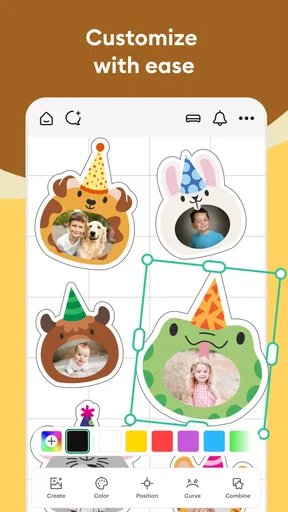
One of the best things about this app is the variety of design tools it offers. From shapes, text, and images to advanced features like slicing and welding, the possibilities feel endless. You can easily import images and fonts, which is perfect if you want to personalize your projects further. Those advanced tools are most useful when they solve a clear layout problem: slicing can help separate parts of a design, while welding can make text or shapes behave as a joined piece. I’d experiment on a duplicate or a small test design first, so I can compare the result without losing the original arrangement.
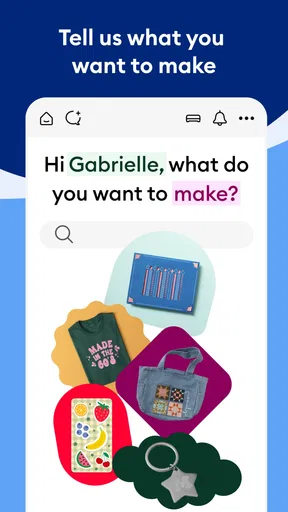
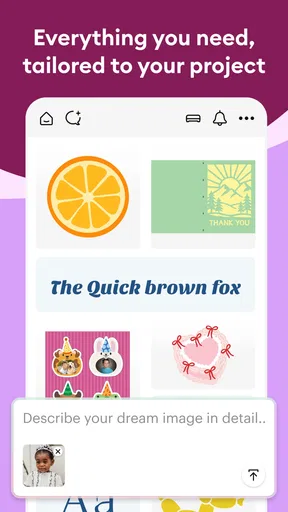
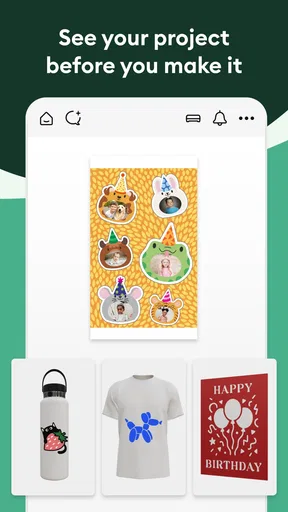
The app also provides access to a vast library of pre-designed projects. These are categorized neatly, making it easy to find something that suits your taste or occasion. Whether it’s a birthday card, a home decor item, or a custom t-shirt design, the app’s got you covered. I’d treat a ready-made project as a starting point, not a guarantee that it will suit every material or use. Before committing, check whether the design’s level of detail and dimensions make sense for the object you’re making; a layout that looks clear on a phone can be harder to work with at a much smaller scale.
Hands-On Crafting
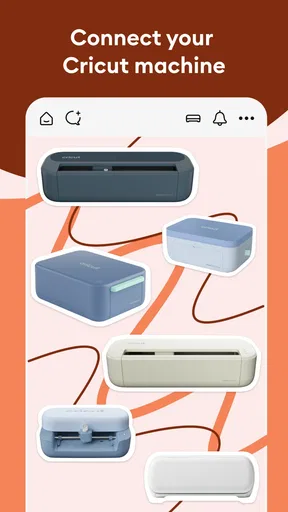
Once you’ve chosen or designed your project, connecting to your Cricut machine is a breeze. The app offers step-by-step instructions that guide you through the cutting or printing process. I appreciated how the app provides tips and tricks along the way, which are super handy if you encounter any hiccups. For a first project, I’d choose a straightforward design and follow the prompts at a comfortable pace. That gives me a chance to learn the sequence before I take on a more intricate layout.
The real magic happens when you see your digital designs transform into real-life creations. The precision of the cuts and the quality of the end product is impressive, and it truly feels rewarding to see your ideas take shape. Still, I wouldn’t put every problem down to the design or the app: material choice and preparation affect how a project turns out too. If a cut looks wrong, it’s worth checking the design and the material setup separately instead of changing several things at once. That makes troubleshooting less frustrating and helps me learn which adjustment actually made a difference.
Community and Inspiration
Another fantastic aspect of the app is the community feature. It feels like a social network for crafters, allowing you to share your projects and get inspired by others. There’s a sense of camaraderie and collaboration that adds a whole new layer of fun to the crafting experience. I find this part most useful when I’m looking for an idea or a different way to approach a project, rather than when I need a precise technical answer.
You can follow other creators, comment on their projects, and even join groups that match your interests. It’s a great way to learn new techniques and stay motivated. One practical way to use inspiration without copying a project outright is to notice how its elements work together: the balance of text and shapes, for example, or how a design is simplified for a small object. Then I can carry that principle into a project that suits my own purpose.
Pricing and Subscription
While the app is free to download, there are additional features and designs available through a subscription service called Cricut Access. I found the subscription reasonably priced, especially considering the vast array of premium content and tools it unlocks. If you’re serious about crafting, it’s definitely worth considering. I’d make that decision after trying the free experience and identifying what I actually want to use regularly, rather than paying simply because a larger library sounds appealing.
However, if you’re just starting out or crafting casually, the free version offers plenty of options to keep you busy and creative. In-app purchases range from $0.99 to $399.99 per item, so I’d check the specific purchase details before confirming anything and keep an eye on which content is included in the option I’m considering. The app’s 3.9 average rating, drawn from around 85,000 ratings and 26,000 written reviews, suggests that people’s experiences vary; I’d weigh that alongside my own workflow rather than treating a rating as a prediction of how well it will fit my projects.
When another tool is a better match
The biggest trade-off is that Design Space is tied to Cricut-oriented making. A general graphic-design app may offer a more comfortable workspace for composing complex artwork, while a drawing app is better suited to creating illustrations from scratch. If I already have a design made elsewhere, I would choose my tools based on how well that artwork can be brought into the project workflow, rather than expecting this app to replace every creative tool I use.
There is also a learning curve hidden inside seemingly simple projects. Arranging shapes and text can be quick, but understanding how a design will be produced takes practice. New users may need a couple of small projects to become comfortable with the sequence and the difference between editing a design and preparing it for making. If I only craft once in a while and don’t own or plan to use a Cricut machine, that investment of attention may not pay off. Someone who wants a fast, one-off graphic for a screen-based purpose should use a tool designed for that output instead.
For people comparing crafting platforms, I’d focus on the machine they intend to use and the kinds of projects they actually make. A platform that supports a different machine may be the better choice if that is already part of someone’s setup; switching simply for a different-looking interface could add effort without improving the finished result. Likewise, someone who mostly wants printable artwork may prefer a design tool centered on page layout. Design Space earns its place when its connection between design and Cricut making is the part you need.
What switching really involves
Moving from another design app is not just a matter of changing icons on a screen. I’d consider whether existing designs can be reused, whether I’m comfortable rebuilding layouts, and how much of my regular work depends on tools I already know. For a new Cricut owner, starting with a small project in Design Space is a sensible way to learn the workflow before moving over a large collection of ideas. For an experienced maker with a settled process, I’d test one representative project first and compare the time and effort involved.
It also helps to keep project files and finished objects in mind as separate stages. A design that is easy to edit is not automatically the easiest to produce, and a project that works once may need adjustment for a different size or material. I’d keep a clean version of a design before making experimental edits, particularly when I plan to reuse it for another occasion. That simple habit makes it easier to return to a known-good layout instead of trying to reconstruct it later.
Final Thoughts
Overall, Design Space: DIY with Cricut is an invaluable resource for anyone interested in crafting. It’s a perfect blend of creativity and technology, making the crafting process both fun and efficient. The app is designed with the user in mind, ensuring that even complex projects are manageable and enjoyable. Cricut has built a tool with a clear purpose, and I think it works best when I approach it as part of a real making process rather than as a substitute for every art or design app.
Whether you’re crafting for personal enjoyment or looking to start a small business, this app is a fantastic tool to have in your creative arsenal. So, go ahead, let your imagination run wild, and start creating with Cricut! My recommendation is strongest for people who already have a Cricut machine, enjoy making personalized physical items, and don’t mind learning through a few small projects. If that sounds like you, the free download makes it easy to explore before deciding whether paid content is useful. If your main goal is drawing, photo editing, or occasional screen graphics, I’d choose a tool built for that instead.
Pros
- User-friendly interface for all skill levels.
- Extensive library of fonts and designs.
- Seamless integration with Cricut machines.
- Regular updates with new features.
- Offline mode available for mobile use.
Cons
- Requires Cricut Access for premium content.
- Limited features on the free version.
- Can be slow on older devices.
- Occasional connectivity issues.
- Steep learning curve for beginners.
FAQs for Design Space: DIY with Cricut
What is Design Space: DIY with Cricut used for?
Design Space: DIY with Cricut is a companion app for Cricut cutting machines, allowing users to create and customize designs for various DIY projects. It offers a wide array of templates, fonts, and images, enabling users to craft personalized items such as cards, apparel, and home décor. The app provides a seamless design experience directly on your mobile device.
Is Design Space: DIY with Cricut free to use?
The Design Space app is free to download and offers a variety of free features. However, access to premium content, such as exclusive fonts and images, requires a Cricut Access subscription. This subscription can enhance your design options and provide additional creative tools, making it a worthwhile investment for avid crafters.
Which devices are compatible with Design Space: DIY with Cricut?
Design Space is compatible with both Android and iOS devices, ensuring a wide range of accessibility. Users should ensure their device meets the minimum system requirements for optimal performance. Additionally, a stable internet connection is necessary for downloading new content and accessing cloud-based designs.
Do I need a Cricut machine to use Design Space: DIY with Cricut?
While the app can be explored without a Cricut machine, a Cricut device is essential for cutting and crafting your designs. The app serves as an interface between your creative ideas and the machine, facilitating seamless design execution. Owning a Cricut machine unlocks the full potential of the Design Space app.
How user-friendly is Design Space: DIY with Cricut for beginners?
Design Space is designed to be intuitive for beginners, offering a user-friendly interface with step-by-step guides and tutorials. The app simplifies the design process with drag-and-drop functionality and easy-to-follow instructions, making it accessible for users of all skill levels to start their crafting journey.


